
The QuickView Tool Family at NERSC 
Our tools have been installed at NERSC, the National Energy Research Scientific Computing Center, and are continually updated there. The following sections on this page contain instructions for users who would like to use our installations for analysis.
Users who are interested in the installation process can find relevant information on separate pages:
- How the developers' installation was done: see this page.
- How to install your own copy at NERSC: see this example.
- How to install the tools on a laptop or desktop computer: see this page.
Quickstart for NERSC users familiar with JupyterHub 
Login to JupyterHub and start a terminal window (shell).
Optional but recommended: in the terminal, use the
cdcommand to go to the directory where your data files are located (or a directory closer to the data files than your home directory). While this step is optional, it may save you quite some clicks later in the graphical UI.QuickView version 2 can be launched using the following command:
/global/common/software/m4359/quickview2- QuickCompare can be launched using the following command:
/global/common/software/m4359/quickcompare- After a few seconds, the terminal window will provide a URL. A click on the URL will bring up the graphical UI in a separate browser window or tab.
Tip 1: Choosing a server for your analysis session.
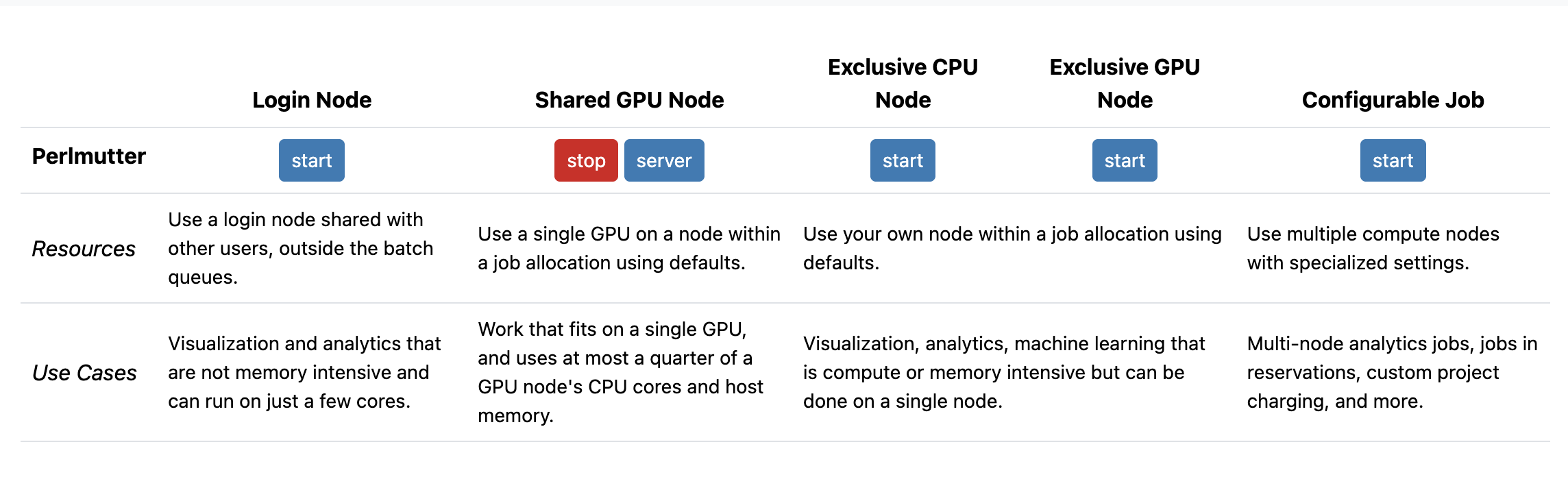
JupyterHub's control panel offers access to different types of resources, including, e.g., login nodes, shared GPU nodes, exclusive nodes, as explained in NERSC's documentation. Since login nodes may become crowded and hence hit memory constraints, for large datasets, we recommend using a shared or exclusive GPU node. Keep in mind, though, that time spent on shared GPU nodes or exclusive nodes will be charged to your project's allocation.
Tip 2: The same executables work for all types of nodes.
Regardless of which type of nodes a user choses in JupyterHub's control panel, the same commands (executables) are used to launch our tools in the QuickView family.
Tip 3: No need for manual module load conda.
When the commands provided above are used to launch tools in the QuickView family, there is no need to manually apply module load conda or activate the conda environment in which the tools are installed. This is because the commands mentioned earlier on this page are in fact scripts that have included those steps.
ATTENTION: Shut down the server when you are done!
After finishing your analysis, please remember to shut down the connection to your assigned node to avoid keeping the resource idle and unnecessarily charging to your project's allocation. This is explained at the end of this video. Also see below for a recap of the steps (clicks).
Shutting down a server in JupyterHub 
- Go to the JupytherHub window/tab in your browser.
- Click on
Filein the top-left corner. - Scroll down and choose
Hub Control Panel. - In the Control Panel brought up in a new browser tab or window, click on the red "stop" button for the server to be shut down. An example is shown in the screenshot below.
Tips for NERSC users who have not used JupyterHub 
Please see this section of NERSC's documentation, especially the video "How to log in to Perlmutter with Jupyter", to learn about the service.
Alternatively, follow our step-by-step description here
Information for users who do not yet have an account at NERSC 
Information on this page can help you get started.