Contents on this page
Using JupyterHub to log in to NERSC 
To use the QuickView family of tools at NERSC, you first need to login to JupyterHub using this link, which will bring you to a page like the screenshot below.
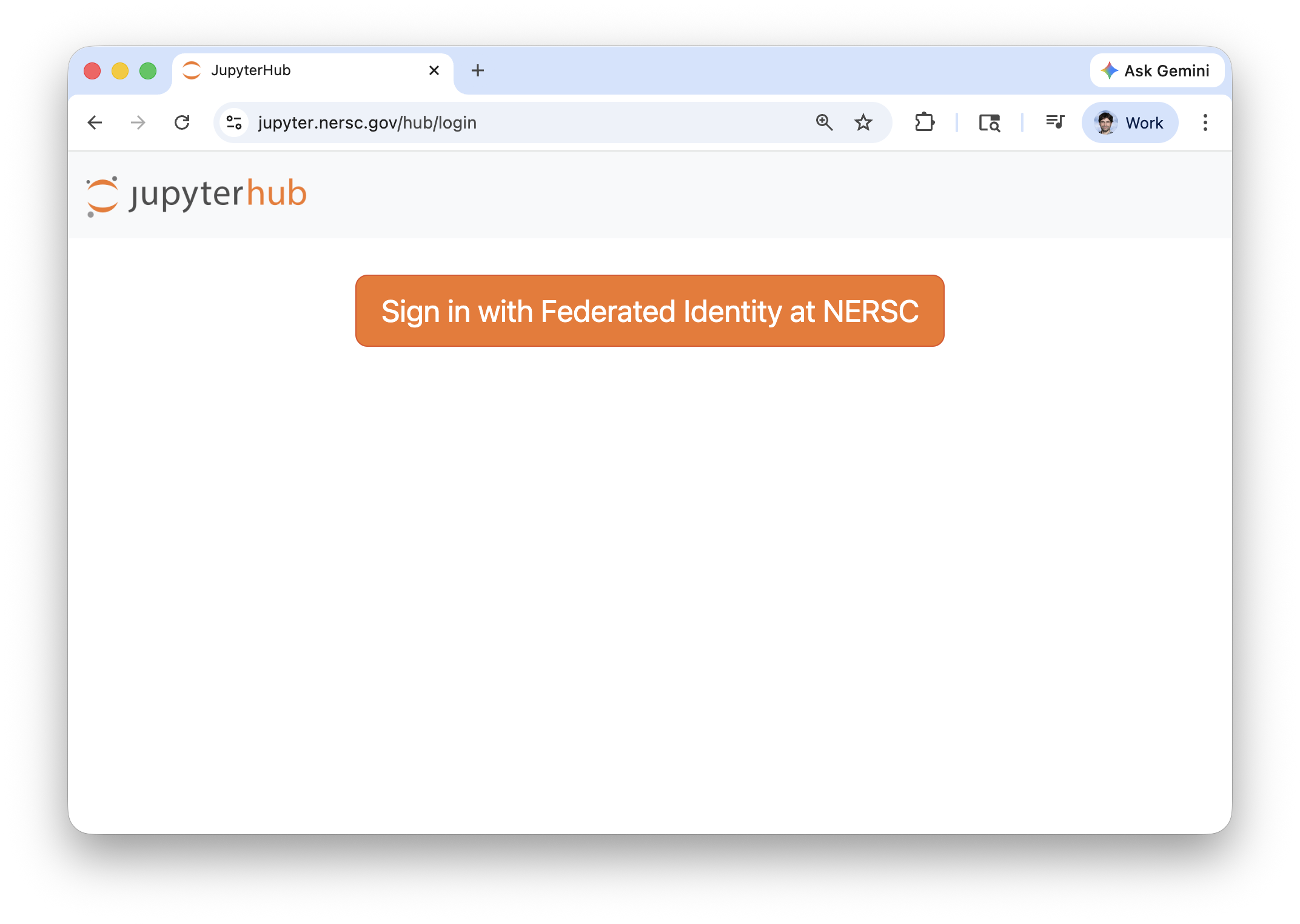
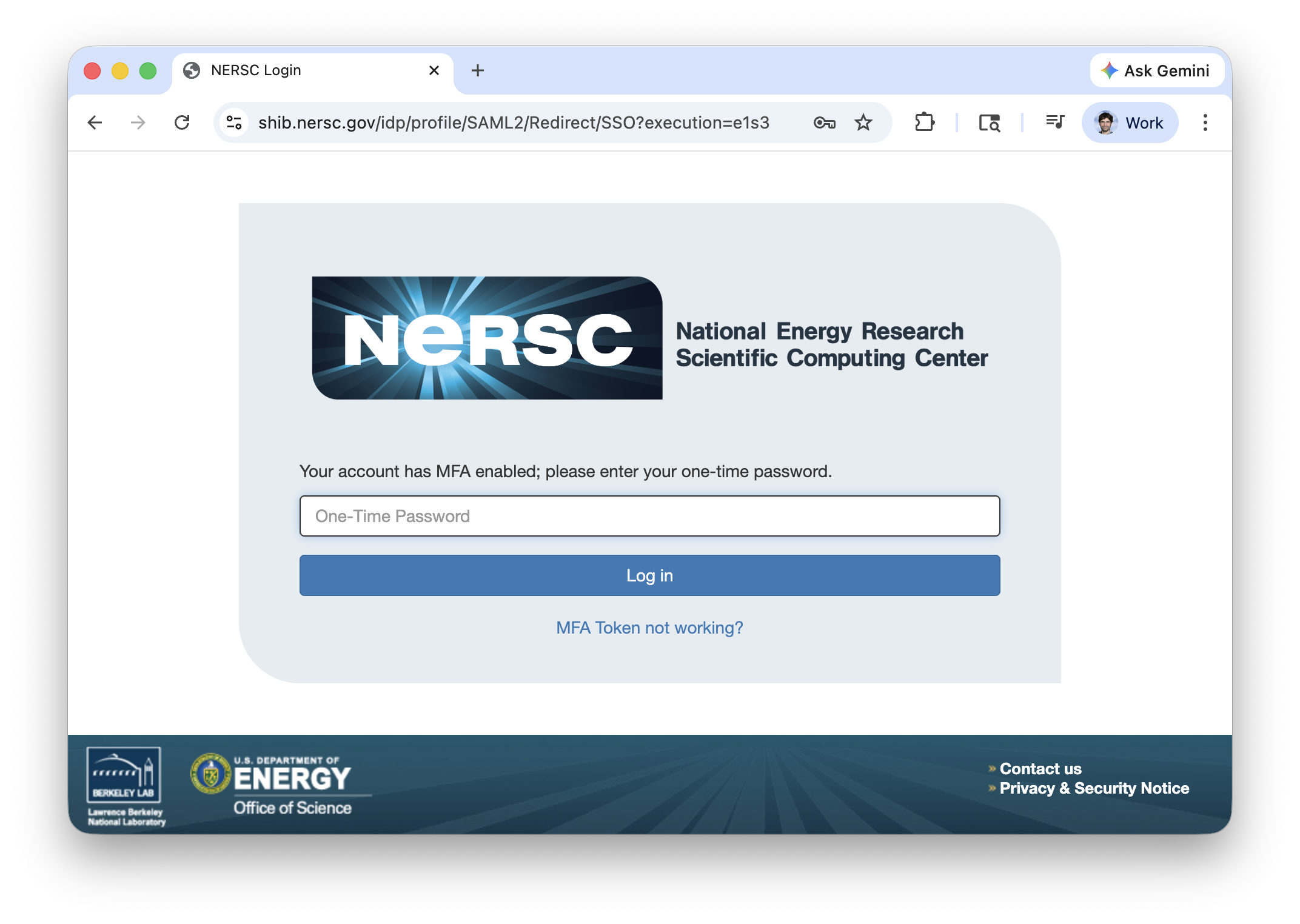
Clicking on the orange "Sign in with Federated Identity at NERSC" button will bring you to a new page to enter your username and password; after that, you will need to fill an OTP (One Time Password):
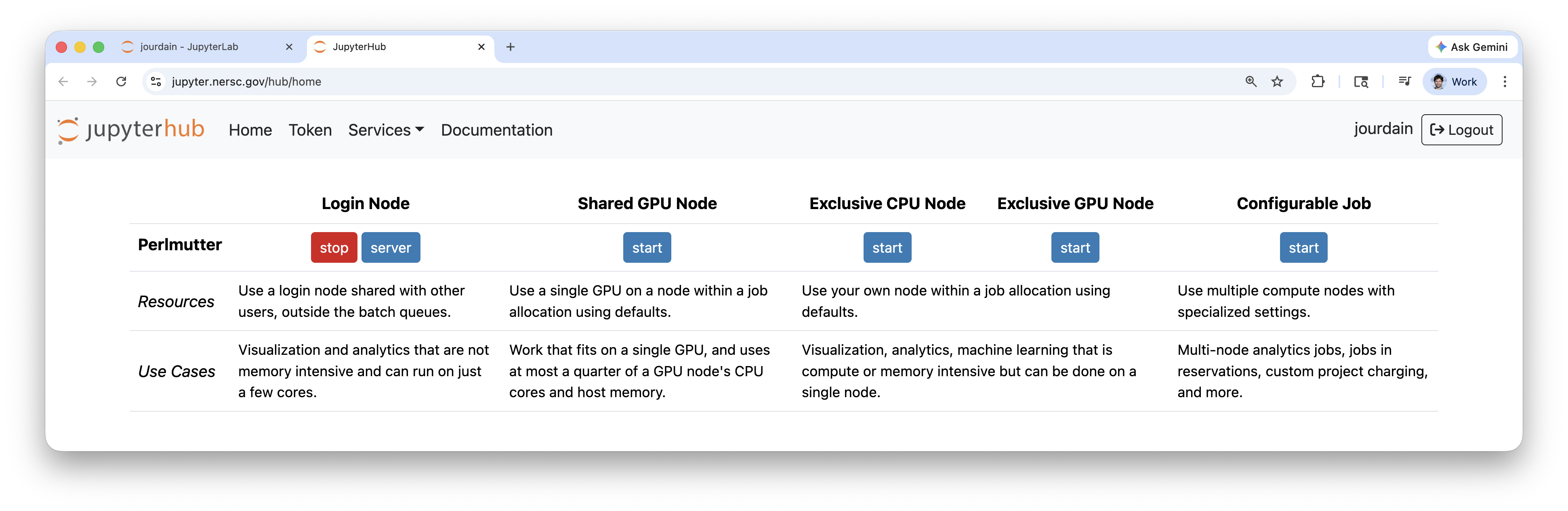
After a successful login, you will be presented with a list of options for where you would like to run your application. For the QuickView family, it is better to have hardware with a GPU to allow interactive rendering. Keep in mind, though, that time spent on anywhere else than a login node will be charged to your project's allocation. Hence, after you are done with the analysis, remember to shut down the service to avoid wasteful use of the resources.
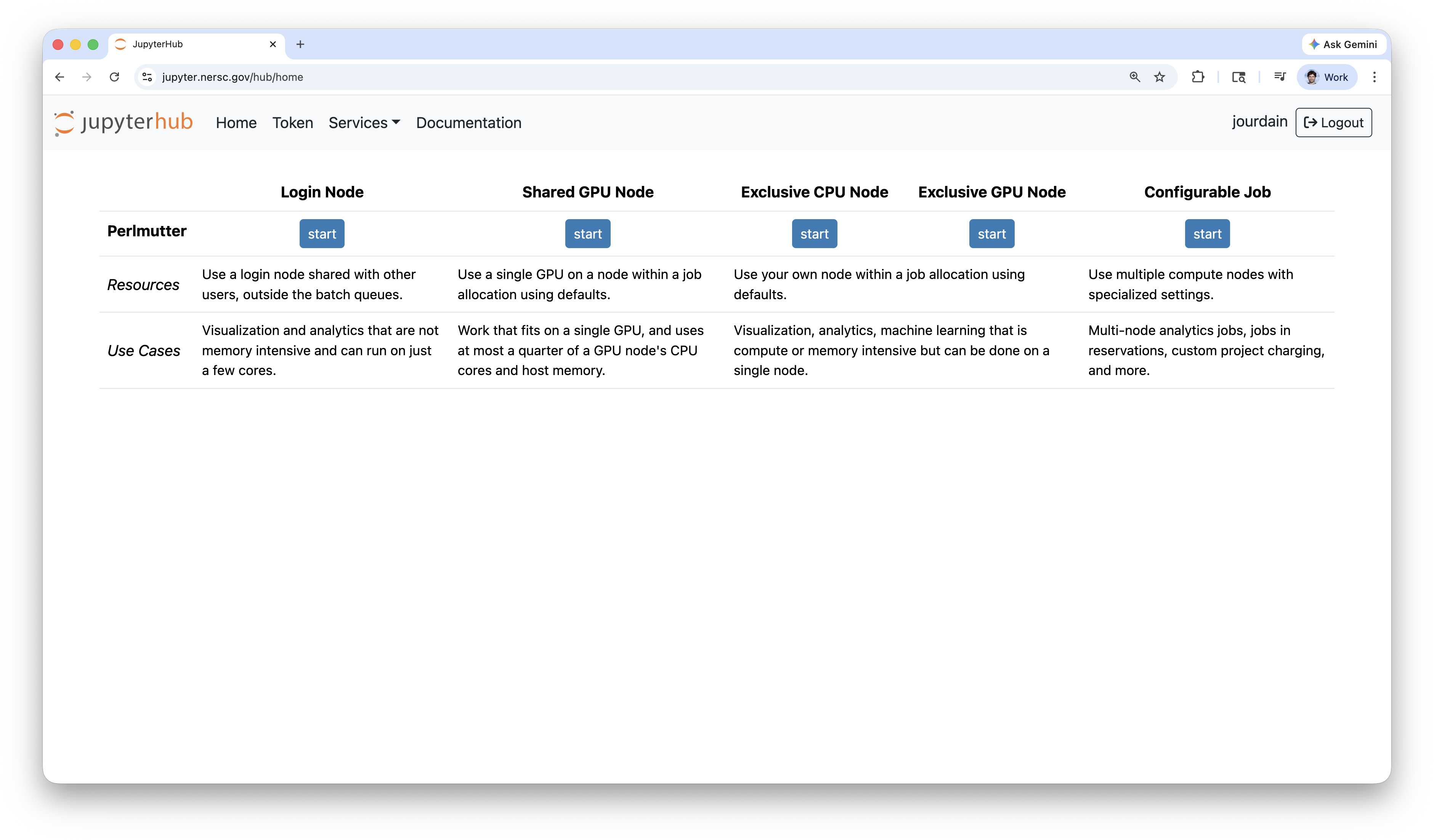
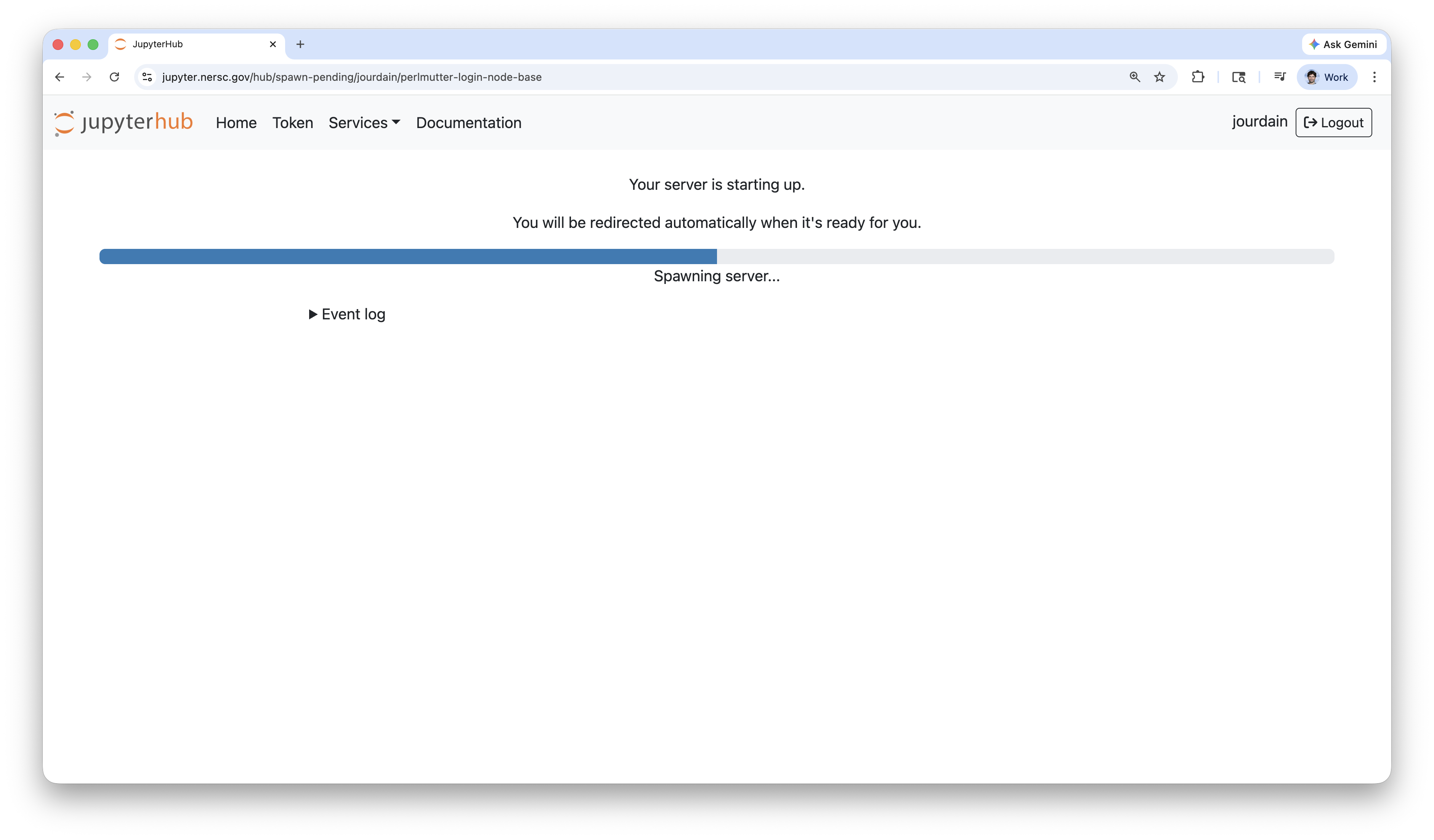
After clicking on one of the "start" buttons, you will see something like the screenshot below and will likely have to wait for some seconds for the service to be ready.
Shutting down the server 
IMPORTANT: Shut down the server when you are done!
After finishing your analysis, please remember to shut down the connection to your selected server (node) to stop the charging of hours to your project's allocation. This is explained at the end of this video, and below is a recap of the steps (clicks):
- go to the JupytherHub window/tab in your browser,
- click
Filein the top-left corner, - scroll down and choose
Hub Control Panel, - in the Control Panel brought up in a new browser tab/window, click on the red "stop" button for the server to be shut down. An example is shown in the screenshot below.