The QuickView Family 
The QuickView family is a collection of interactive tools for visualizing and analyzing Earth system simulation data on the model’s native grid. Compared to diagnostic packages that generate hundreds of static figures for comprehensive model evaluation, our tools aim at facilitating the exploratory work often needed early in an investigation or during code debugging.
Each tool in the QuickView family supports only a small set of tasks. This focus keeps the graphical interfaces simple and intuitive. Meanwhile, we are continuing to examine common analysis workflows and emerging needs and considering additions to the family.
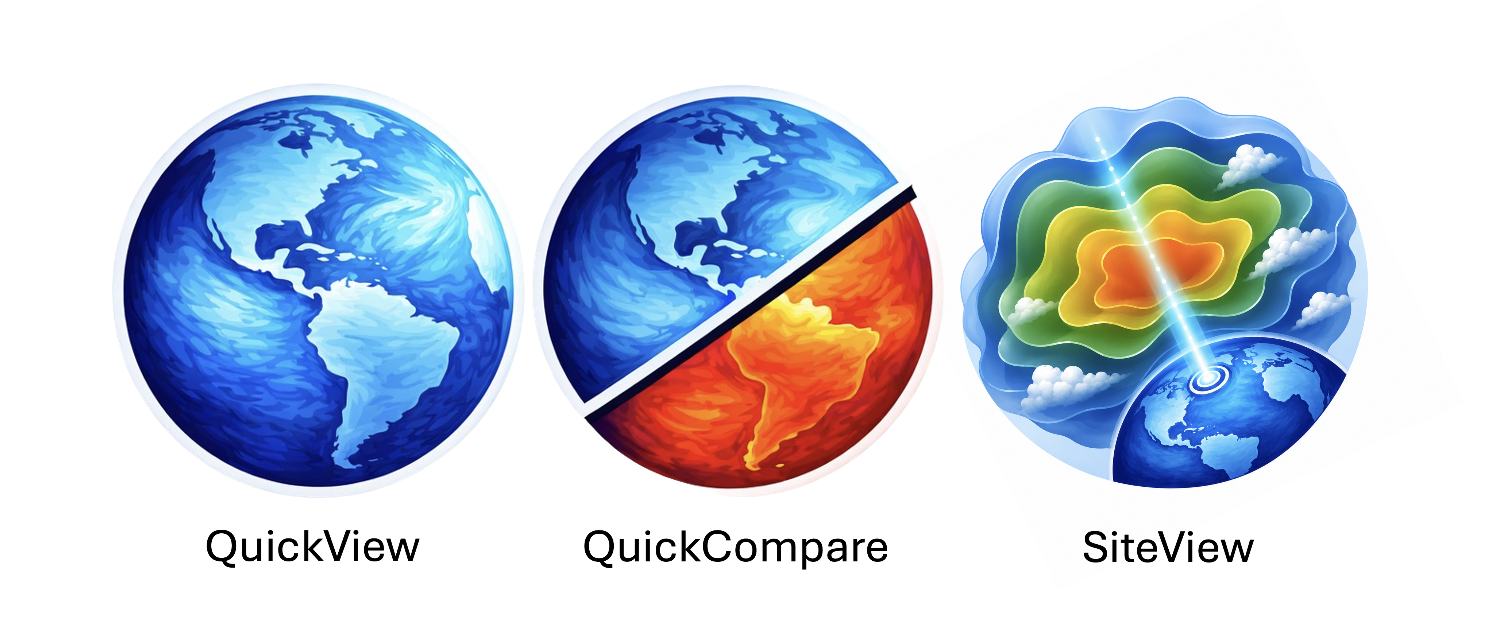
The first three members of the family are
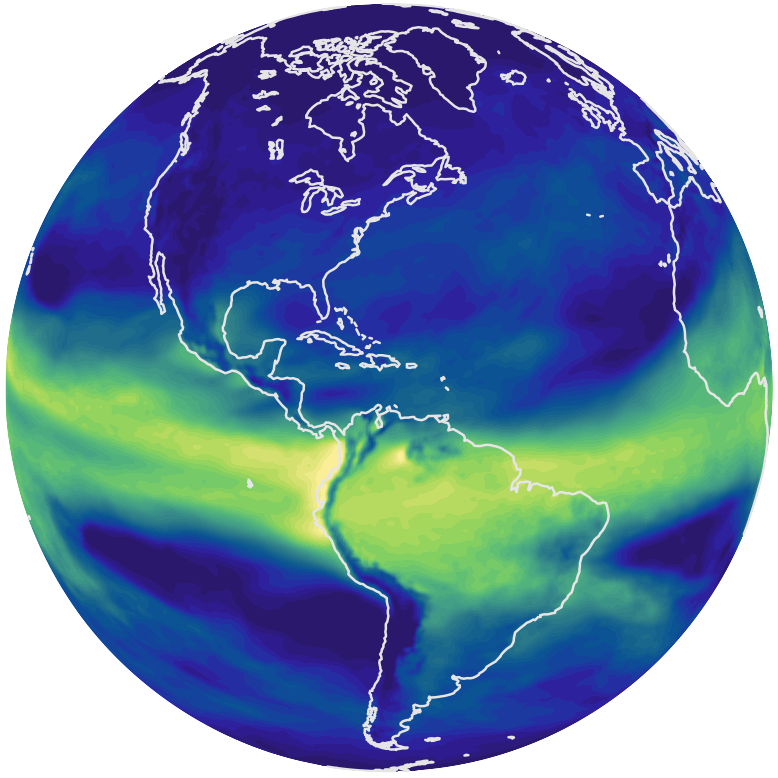
- QuickView for simultaneously presenting 2D contour plots of multiple physical quantities (variables) on global or regional maps,
- QuickCompare for contrasting two or more simulations, also using 2D contour plots, and
- SiteView for process-level analysis of an atmospheric column and its regional environment.
Currently, our tools only support the E3SM Atmosphere Model's cubed-sphere meshes, including both the ne*np4 GLL grids and the ne*pg2 "physics" grids. Extensions to other meshes are underway.
Key Reminders 
Two modes of use
QuickView can be used in two modes: a new-vis mode (for starting a new visualization) or a resume mode (for resuming an analysis). Further details can be found on, e.g., this page.
Connectivity files
Since E3SM's cubed-sphere horizontal grids are unstructured meshes, the so-called connectivity files are needed in addition to the simulation data files for the visualization. Further information about connectivity files can be found on this page.
Consistency between connecitivity and simulation files
One of the often encountered causes of error when loading files in the QuickView family is that the grid described by the connecitivity file does not match the grid in the simulation data file. In such a case, after the user specified the two files and clicked Load files (see more detailed description here), the file loading dialogue window will remain open and appear non-responsive, and the terminal window will display a message like the following:
Error occurred in UpdatePipeline. Please check if the data and connectivity files exist and are compatibleThe Load ... Variables button
Most buttons, sliders, and selection boxes in the graphical User Interfaces (UIs) apply their effects immediately upon user interaction. An important exception is variable selection: After variables are chosen for the first time following file loading or after the selection is changed, the user must click the Load ... Variables button at the top of the variable selection control panel in order for the new selection to take effect, i.e., for the selected variables to be loaded into memory and shown as images in the viewport.
Show/hide control panels
Each tool in the QuickView family contains multiple control panels for setting properties of the visualization. These control panels can be shown/expanded for easy access or be hidden/folded to maximize the screen space for visualization The UIs provide both keyboard shortcuts and toggles in the toolbar to show or hide these control panels.
Viewport layout
All tools in the QuickView family are designed to simultaneously present multiple images and charts etc. to help the user identify relationships and distinctions. The sizes and the layout of the different images etc. can be easily adjusted. See, e.g., this page.
Furthermore, if a user saves a state file after these adjustments, they can later resume their analysis with the customized arrangement. For example, the use of state files in QuickView can be found in this section.