
Selecting Variables to Inspect 
Starting in version 2, QuickView's variable search and selection capabilities are substantially enhanced. This was partly motivated by the generalization of the tool to handle arbitrarily-shaped arrays, and partly due to the intention to help users navigate through simulation files containing many (e.g., hundreds of) variables.
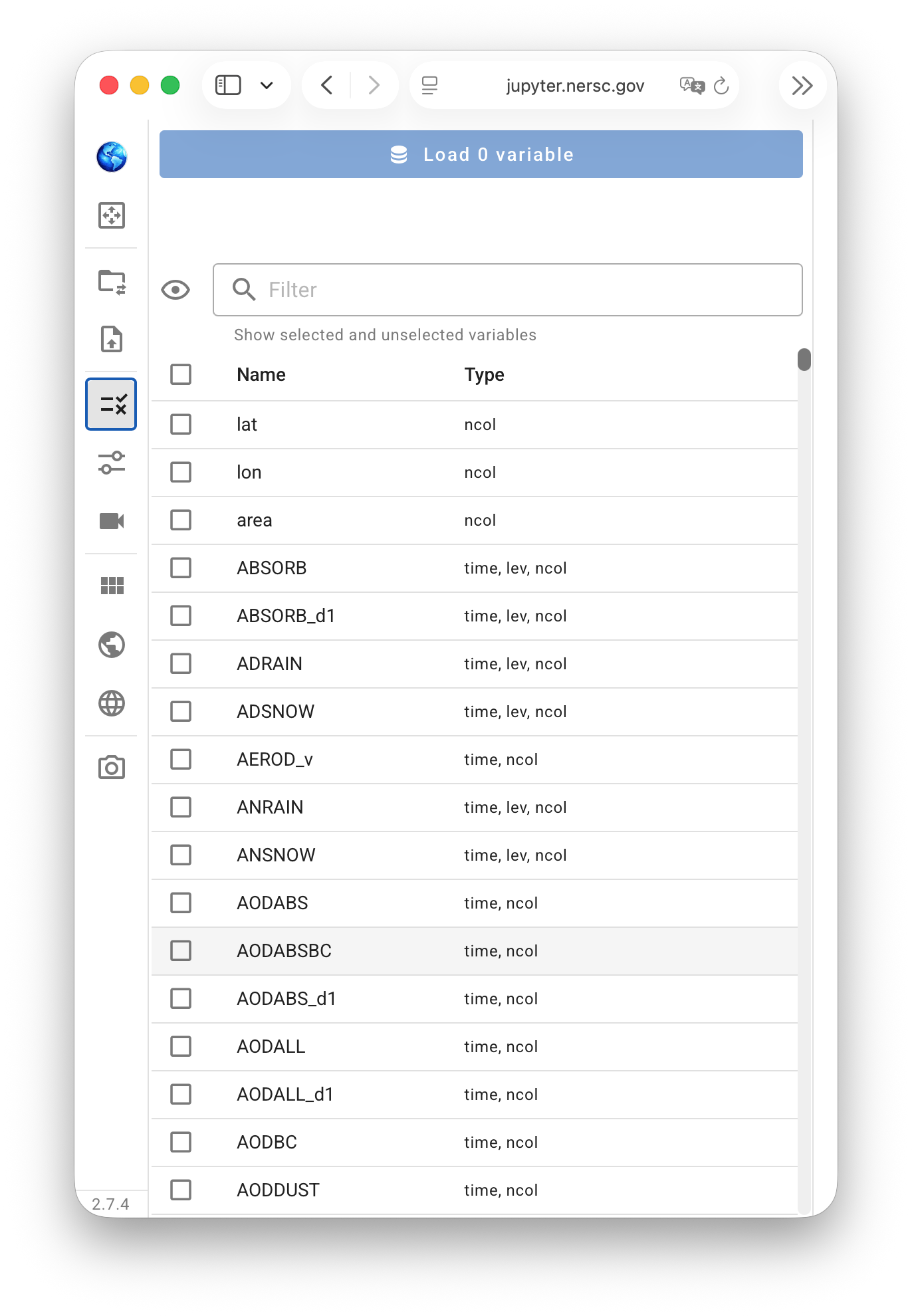 Here, we use a simulation file with more than one thousand variables as an example to explain the search and selection capabilities.
Checkboxes 
The first screenshot here shows how the Variable Selection panel looks like after a simulation file has been loaded.
- The checkboxes to the left of the variable names can be used to select or unselect the corresponding variables.
- The first checkbox, to the left of "Name" and below the eye icon, can be used to select or unselect all variables on the list.
Variable groups 
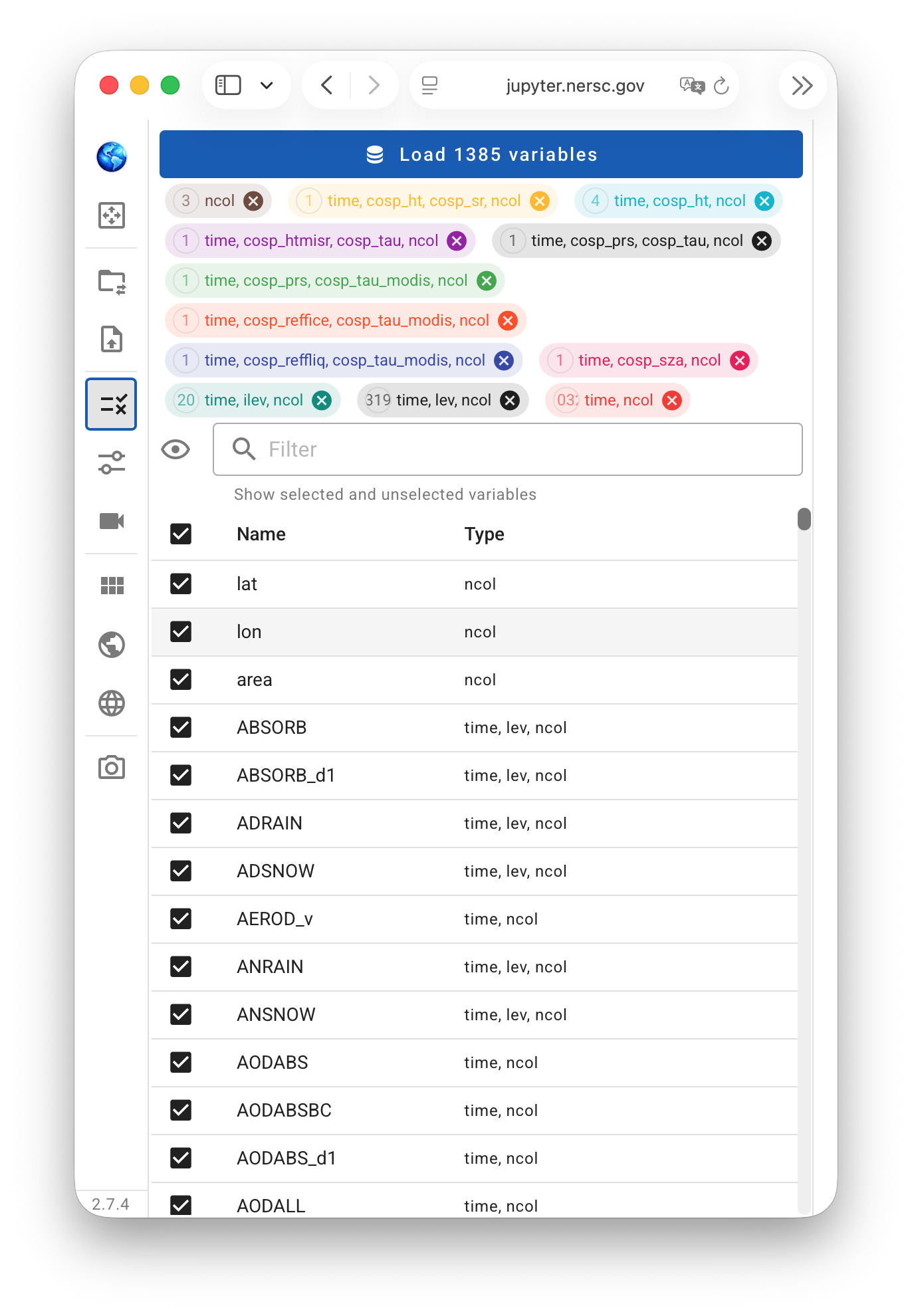 QuickView sorts variables into different groups according to their dimensions and, subsequently, allows the users to select, unselect, and inspect groups.
In the same example as discussed above, when all variables are selected using the first checkbox in the Variable Selection control panel, we get the second screenshot shown here.
- The wide blue button at the top of the contol panel indicates there is a total of 1385 variables displayable in the file.
- The colorful tabs correspond to different variable groups with distinct shapes. Each group's shape (dimension combination), as well as the number of displayable variables in the group, is shown inside the corresponding tab. Each tab also has a "close" button that can be used to unselect the entire group.
Note that at this point, QuickView has not loaded all the variables into memory. It has finished a scan and is ready to load these variables.
Variable search 
Below the variable group tabs and above the list of variables, there is a text input box with a magnifying glass icon. This box, also referred to as the filter box, can be used to search for variables by their names or dimensions.
Fuzzy search: As soon as the user enters text into the filter box, QuickView displays a filtered list of variables whose names or dimension names contain the entered string. Fuzzy search is case-insensitive.
Pattern search: Patterns such as
text*or*textcan be used to match variable names that start or end withtext, respectively. Pattern search is also case-insensitive.Strict search A string enclosed in double quotation marks (e.g.,
"text") can be used to request exact matches of variable names, with no preceding or succeeding characters. Exact search is case-sensitive.
Variable lists 
The eye icon to the left of the text input box (filter box) is a button for cycling through three display modes of the variable list. The icon changes to reflect the current mode:
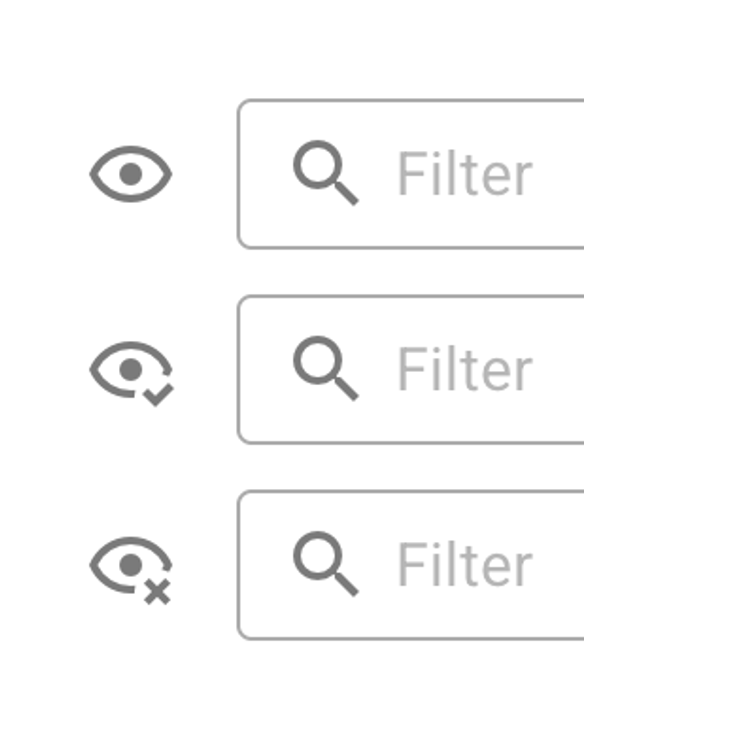
- Eye only – shows the full list of variables, both selected and unselected.
- With check mark – shows only the variables currently selected via the checkboxes.
- With cross – shows the variables that are not currently selected.
When a search or filter is active, these modes apply to the filtered list rather than the full set of variables in the simulation data file. Also note that:

- If the user wants to return to the full list of variables in the data file, the filter can be cleared by first hovering the cursor over the filter box and then clicking the cross button on the right end.
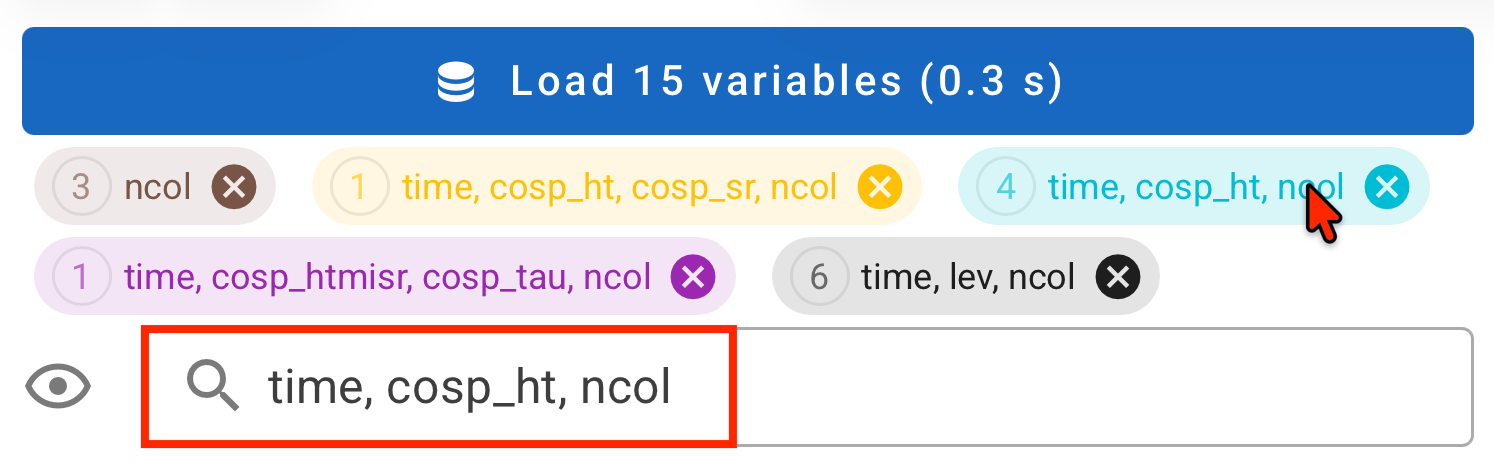
- Clicking a colored variable-group tab sets the filter to that group. The three display modes then apply to the selection state within that group. A second click on the group tab clears the filter.
Reminder: Do not forget the Load ... variables button
After making your selection or adjusting it, the Load ... variables button at the top of the control panel needs to be clicked in order for the selected variables to be loaded into memory and shown in the viewport.