Keyboard shortcuts in QuickView 
Most of QuickView's shortcuts use a single key for convenience and to avoid conflict with the multi-key combinations used by the operating system or other applications. To use QuickView's shortcuts, make sure the browser tab or window showing QuickView is active.
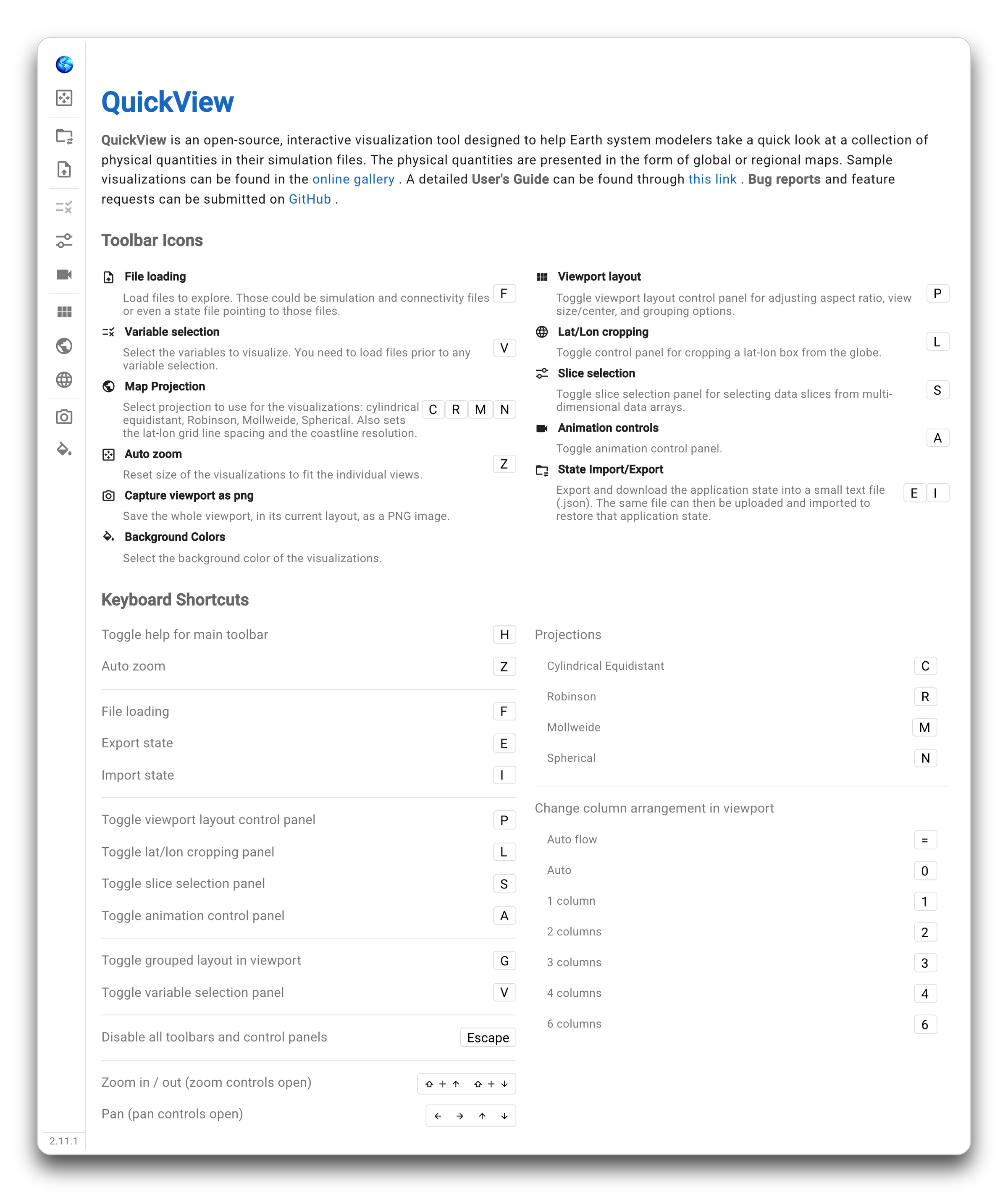
The viewport displays an in-app help page, shown in the screenshot, when no variables from the simulation file are loaded, including at startup. The remainder of this page summarizes the shortcuts and provides links to more detailed description pages.
General 
| Key | Toolbar icon | Action |
|---|---|---|
H |  | Expand or collapse the main toolbar |
Z | Auto zoom fits each plot to its view | |
F | Open the File loading dialog | |
E | Save state file | |
I | Upload state file (Load state file in the desktop app) | |
Esc | Close all control panels and collapse the main toolbar |
Control panels 
| Key | Toolbar icon | Action |
|---|---|---|
V | Show or hide the Variable selection panel | |
S | Show or hide the Slice selection panel | |
A | Show or hide the Animation controls panel | |
P | Show or hide the Viewport layout panel | |
L | Show or hide the Lat/Lon cropping panel |
Map projections 
| Key | Projection |
|---|---|
C | Cylindrical Equidistant |
R | Robinson |
M | Mollweide |
N | Spherical |
Viewport layout 
| Key | Action |
|---|---|
G | Toggle between grouped and ungrouped views |
= | Use the Auto flow column layout |
0 | Use the Auto column layout |
1, 2, 3, 4, 6 | Set the number of columns to 1, 2, 3, 4, or 6 |
You can also hold Alt while pressing any of the number keys above, including 0.
Zoom and pan 
Zoom shortcuts require the zoom controls to be expanded in the viewport layout panel. Pan shortcuts require the pan controls to be expanded.
| Key | Action |
|---|---|
Shift + ↑ | Zoom in |
Shift + ↓ | Zoom out |
←, →, ↑, ↓ | Pan the plots inside their views |