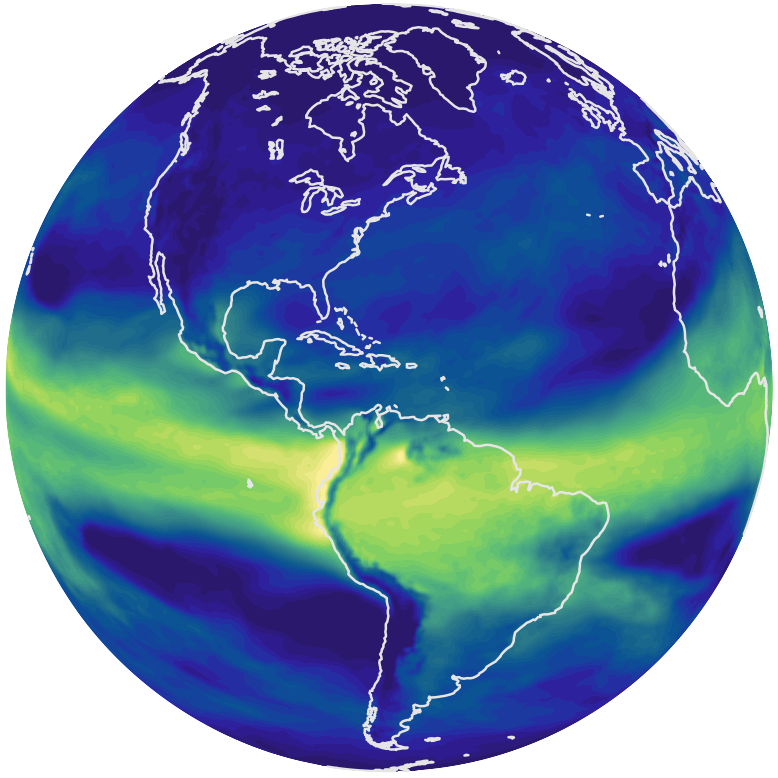
The Cursor Probe in QuickView 
Starting with version 2.8.3, QuickView provides a Cursor Probe for inspecting data values at the cursor location. Two probe modes are available:
| Icon | Mode | Description |
|---|---|---|
 | Hover Mode | Updates continuously as the cursor moves over contour plots in the viewport. |
 | Click Mode | Updates only when the user clicks a location in a contour plot. This mode may provide better responsiveness when working with very large datasets. |
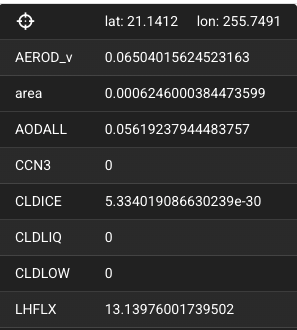
In both modes, information associated with the cursor location is displayed in an Information Panel, as shown in the screenshot here. The latitude and longitude of the cursor location are shown at the top, followed by the name and value of the variable in the current view, as well as the names and values of the other variables displayed in the viewport. If a variable has non-horizontal dimensions, the value shown in the Information Panel is the value at the cursor-selected lat-lon location in the currently data slice.
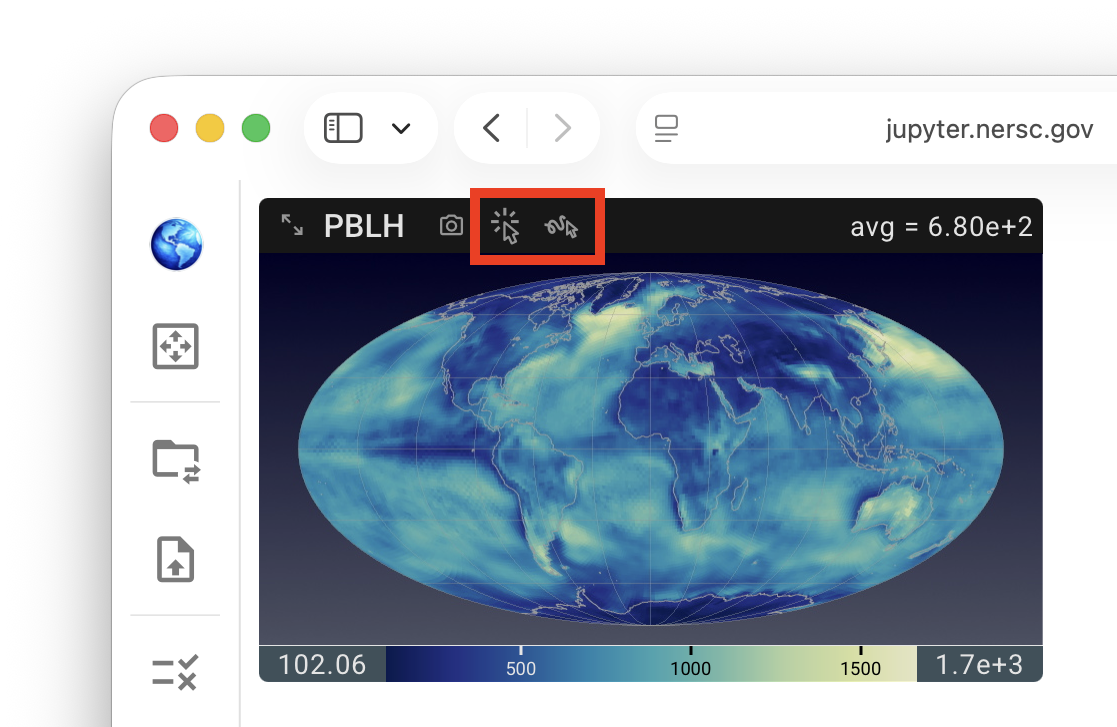
The Cursor Probe is inactive by default and can be activated by clicking either the Hover Mode or Click Mode icon in any viewport panel. These icons are available in all views for convenient access. However, the probe's activate/inactive state applies to the entire viewport and is shared across all views. As a result, the Cursor Probe cannot be enabled for some views (variables) while remaining disabled for others.