The Cursor Probe in QuickCompare 
Starting with version 1.11.0, QuickCompare provides a Cursor Probe for inspecting data values at the cursor location. Two probe modes are available:
| Icon | Mode | Description |
|---|---|---|
 | Hover Mode | Updates continuously as the cursor moves over contour plots in the viewport. |
 | Click Mode | Updates only when the user clicks a location in a contour plot. This mode may provide better responsiveness when working with very large datasets. |
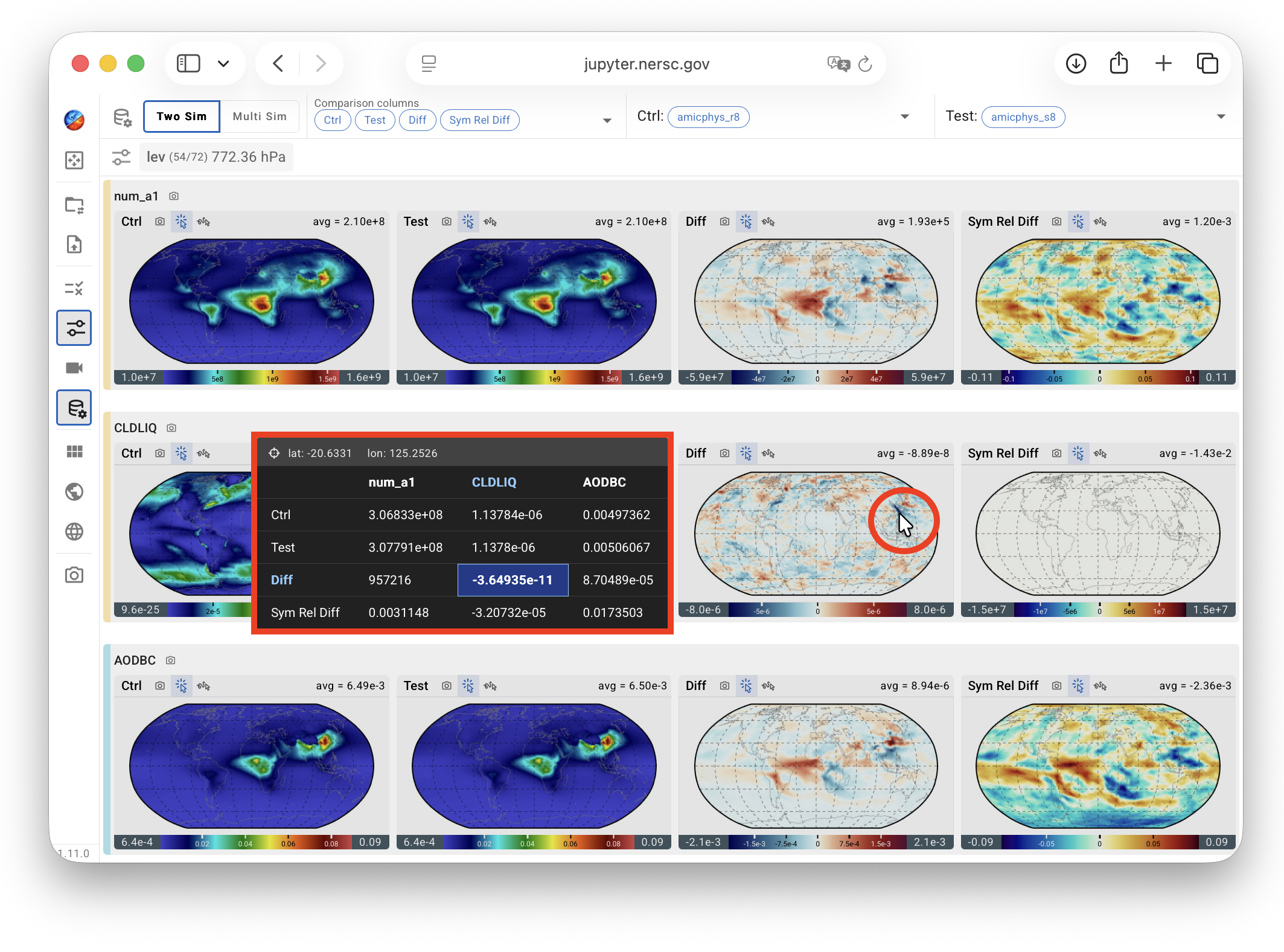
In both modes, information associated with the cursor location is displayed in an Information Panel. The latitude and longitude appear at the top, followed by a data table. The data corresponding to the plot under the cursor is highlighted using boldface text and a different background color.
The organization of the table differs between the two-simulation and multi-simulation comparison modes.
Two-simulation mode 
In the two-simulation mode, the table in the Information Panel presents the user-selected comparison metrics—such as Ctrl, Test, Diff, and Rel Diff—as rows and up to four output variables as columns. If more than four variables have been selected, the table includes the first four currently displayed in the viewport.
Multi-simulation mode 
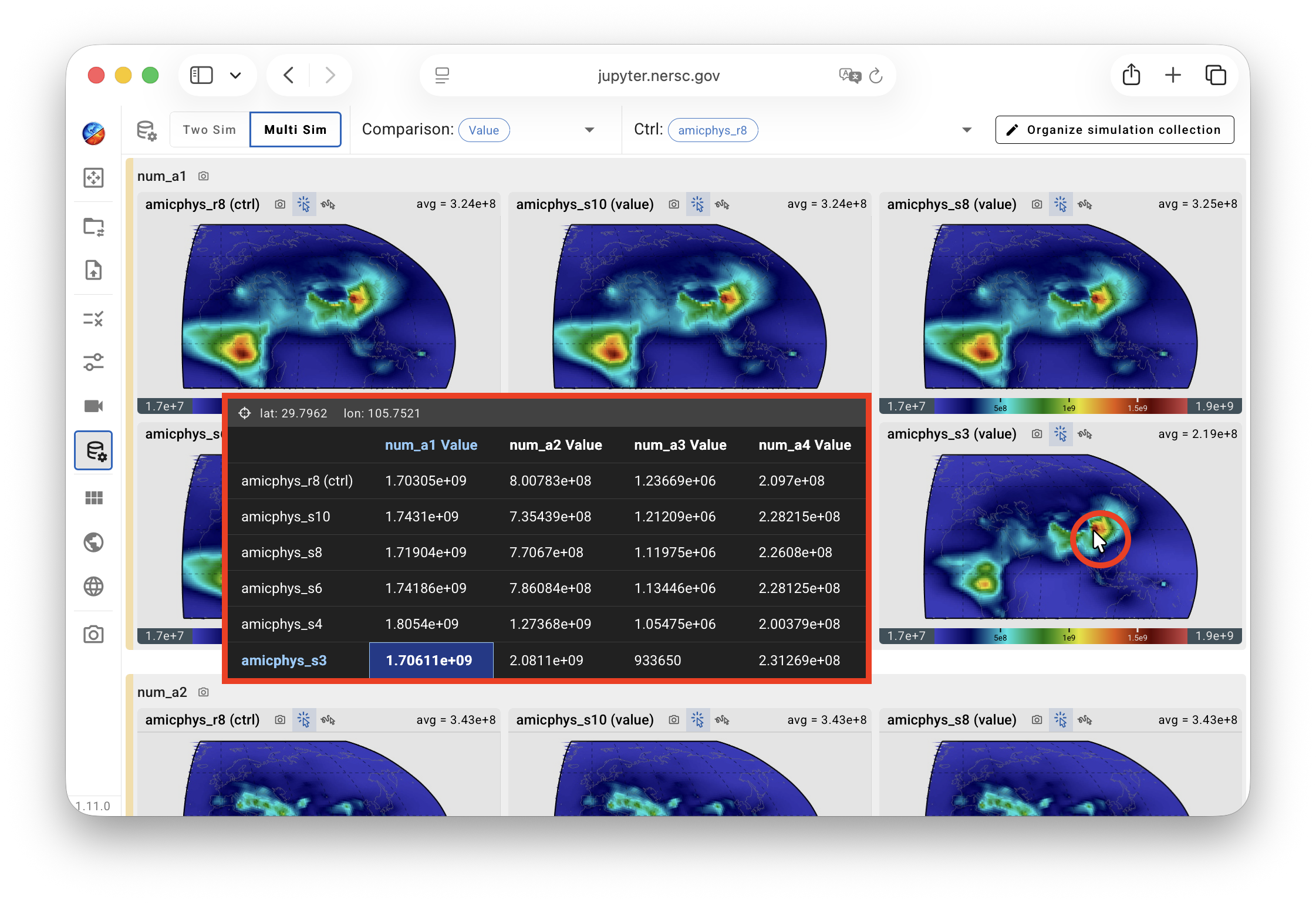
In the multi-simulation mode, when the comparison type is set to Value, the table in the Information Panel presents variable values, with rows corresponding to simulations and columns corresponding to variables. The table cell corresponding to the plot under the cursor is highlighted.
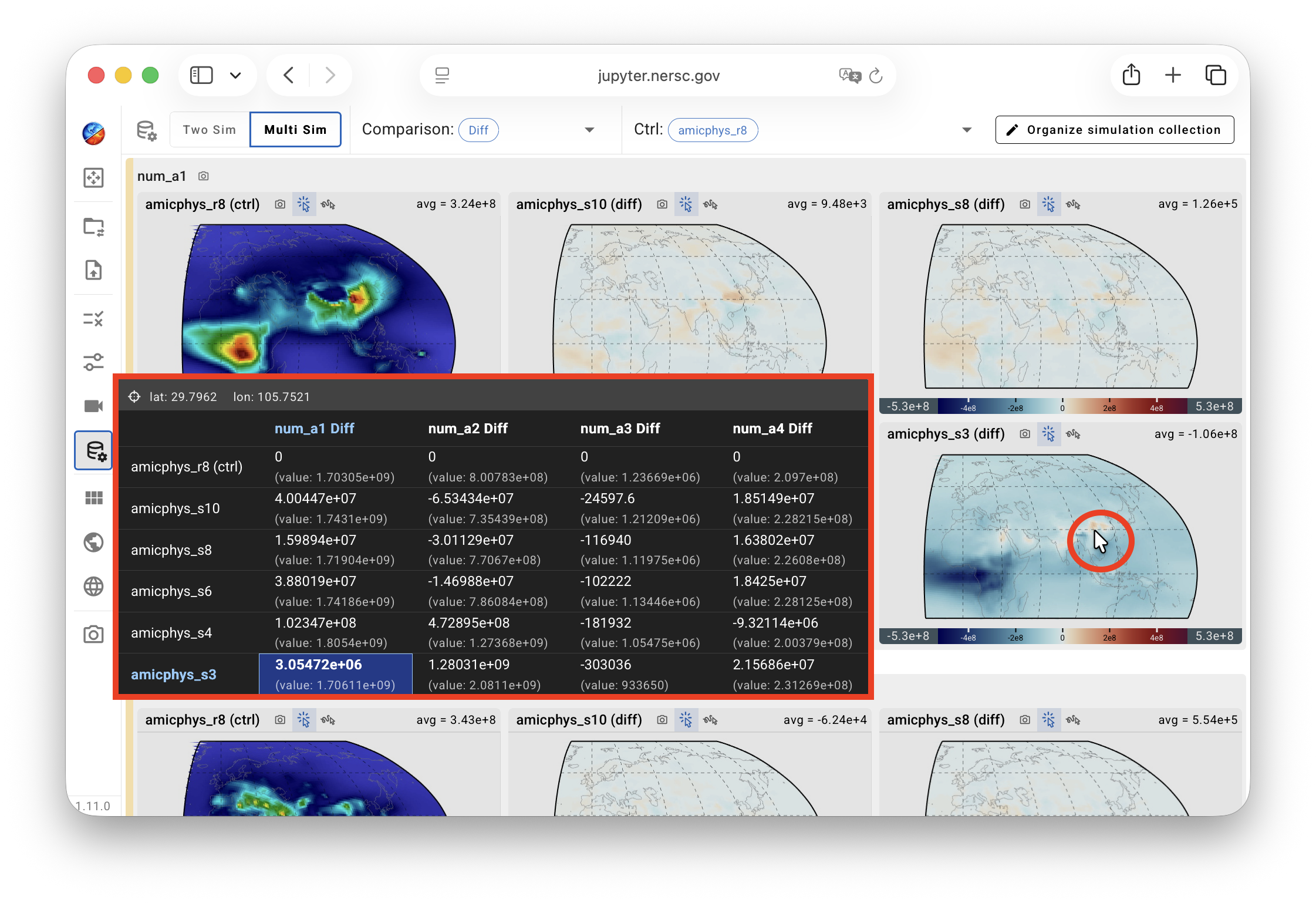
When the comparison type is set to Diff, Rel Diff, or Sym Rel Diff, the table presents the differences as the primary values and shows the original values in gray within parentheses. As in the "Value" comparison, rows correspond to simulations, columns correspond to variables, and the cell corresponding to the plot under the cursor is highlighted.
Activating the probe 
The Cursor Probe is inactive by default and can be activated by clicking either the Hover Mode or Click Mode icon in any viewport panel. These icons are available in all views for convenient access. However, the probe's activate/inactive state applies to the entire viewport and is shared across all views. As a result, the Cursor Probe cannot be enabled for some views (variables) while remaining disabled for others.