Selecting Files for Analysis 
QuickCompare can be used in two modes:
- a new-vis mode for starting a new analysis, or
- a resume mode for continuing an earlier analysis saved in a state file. Both are explained below.
New-vis mode: starting a new analysis 

When QuickCompare is launched using a shell command or the desktop bundle, or when the user clicks the "File Loading" icon on the toolbar, a dialogue window like the screenshot below is brought up. The user is expected to select a connectivity file and at least two simulation files from the file browser in this window.
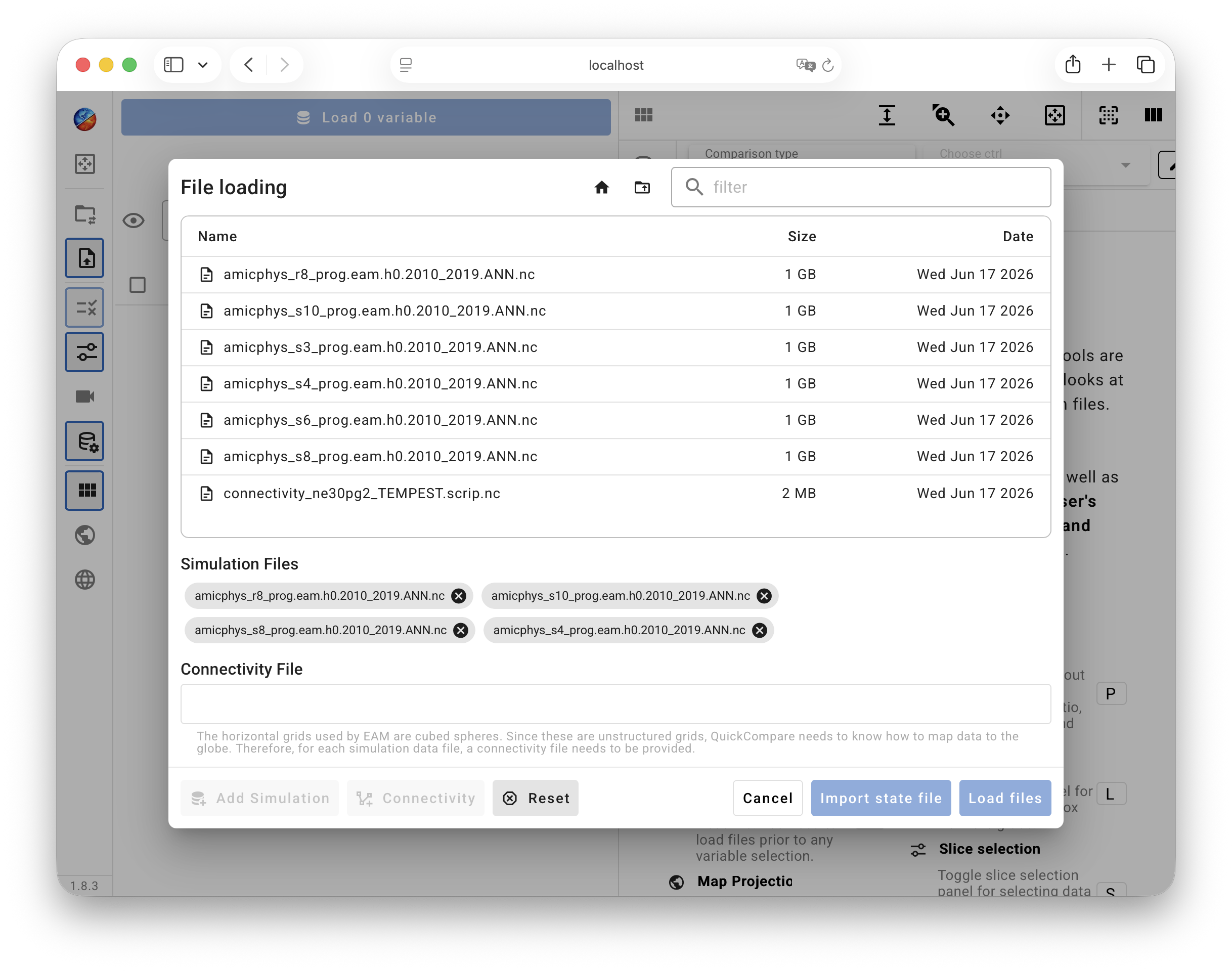
To select a connectivity file, the user can single-click a file name in the file browser and then click the "Connectivity" button near the bottom-left corner to clarify file type. Alternatively, if a filename starts with "connectivity", then the user can double-click the file to have its type recognized automatically.
To select simulation files, the user can single-click each file and then click the "Add Simulation" button in the bottom-left corner, or, alternatively, double-click a filename (as long as it does not start with "connectivity"). The selected files are listed in gray tabs under "Simulation Files" (see screenshot above); each tab contains a cross button for deselecting the file.
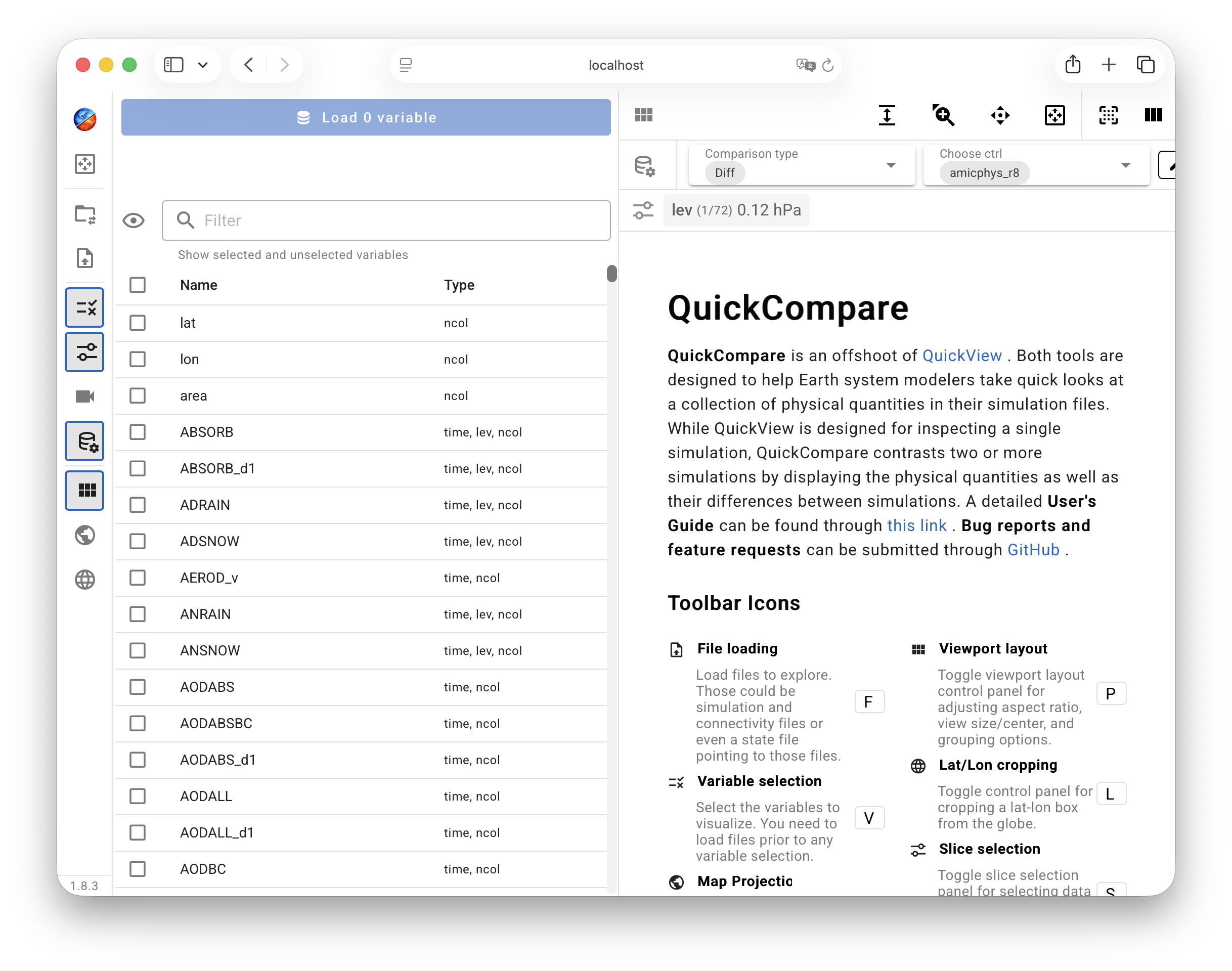
When both connectivity and simulation files have been selected, the pale-blue Load Files button in the bottom-right corner of screenshot above changes to bright blue; a single click starts file loading. If successful, the UI changes into a layout like the example below, with the Variable Selection control panel on the left showing a list of parsed variables and the viewport on the right showing a brief introduction to QuickCompare. The user can now start to select variables and data slices to inspect. Depending on whether two or more simulations have been selected, the app will enter into a two-simulation or multi-simulation (ensemble) comparison mode.
Tip: File system navigation
 For QuickCompare installed through conda, the start directory is the directory in which the app is launched via a shell command or script. After launch, the File Loading dialogue window shows the contents in that directory, and the user can double click the listed subdirectories to go in–or use the folder icon with an upward arrow to go to the parent directory. A click on the house icon brings the file browser back to the start directory. Because of this concept of the start directory, we recommend that users launch QuickCompare in a directory close to their data so that fewer clicks are needed in the file search.
Resume mode: picking up where you left off 
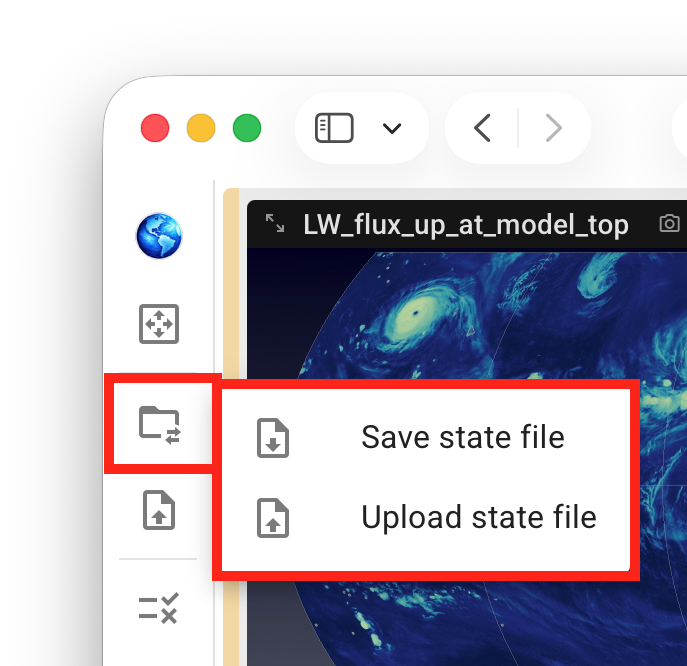
Just like in QuickView, the current state of the analysis session in QuickCompare can be saved—and reloaded later to resume the inspection—using the State Import/Export button in the vertical toolbar or using the shortcut I for import and E for export.
Note that regardless of whether QuickCompare is executed on a local computer or on a remote system (e.g., at NERSC), the state files are saved to and uploaded from the local computer.
Info: What's in a State File?
A state file is a JSON file that contains the paths and names of the connectivity and data files being used as well as the settings the user has chosen for the visualization; the contents of the connectivity and simulation files are not included.
If a state file is shared among multiple users or used across different file systems, or if a user wants to apply the same visualization settings to a different simulation data file, then the file names and paths at the beginning of the state file need to be edited before the state file is loaded in the app.